What it does
Connect over SSH, mosh (stays connected on flaky networks), or herdr (persistent sessions without thinking about tmux/screen)
Falls back automatically to tmux or your login shell when those tools aren't available
In landscape, the terminal fills the screen and sessions switch from a side rail
Public keys and hosts are stored only in the device Keychain — nothing passes through an external server
See it in action

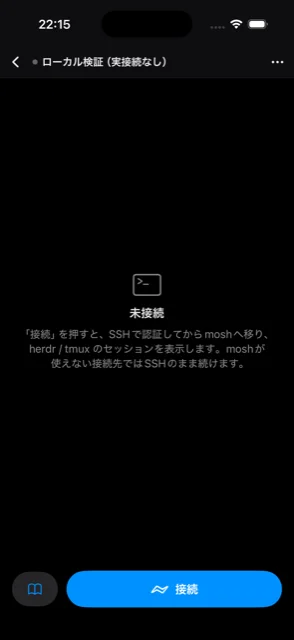
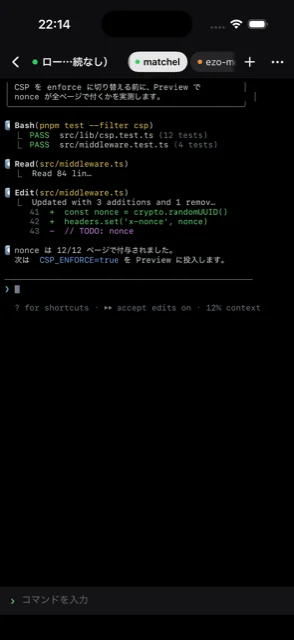
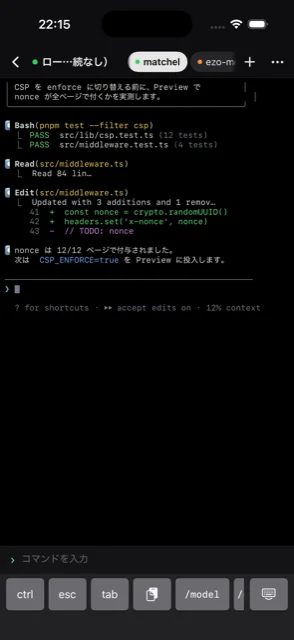
How to use it
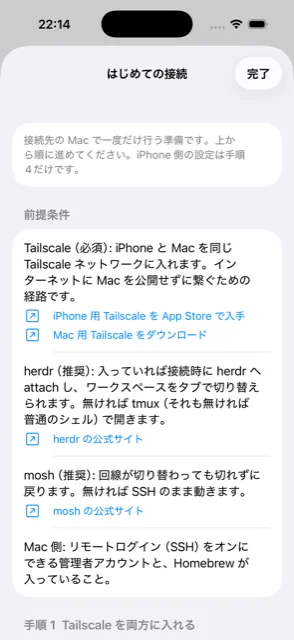
- Install Tailscale on both devices
Put your iPhone and Mac on the same Tailscale network — a way to connect without exposing your Mac to the internet.
- Set up herdr or mosh on the Mac (recommended)
With herdr installed, HopMosh auto-attaches and lets you switch workspaces from a tab bar. Falls back to tmux, or a plain shell if neither is available. mosh keeps the session alive across network changes.
- Turn on Remote Login (SSH) on the Mac
System Settings → General → Sharing.
- Add a connection on iPhone
Just enter a MagicDNS name or Tailscale IP. Credentials are managed by Keychain reference only — no password is ever stored in the app.
- Tap Connect
HopMosh authenticates over SSH, then moves to mosh, and shows your herdr or tmux session.
How connections work
The app connects directly to the host you specify. WATRIX never relays your traffic or collects usage data. See the Privacy Policy for details.